
Check in attendees
The Guest List in the Onsite app shows a list of attendees who have registered for your event. You can search for an attendee by their order number, name, or email address, or by scanning their ticket. Attendees who have checked in already will have a green checkbox.
Find the Guest List
-
Open the On-site app and go to an event
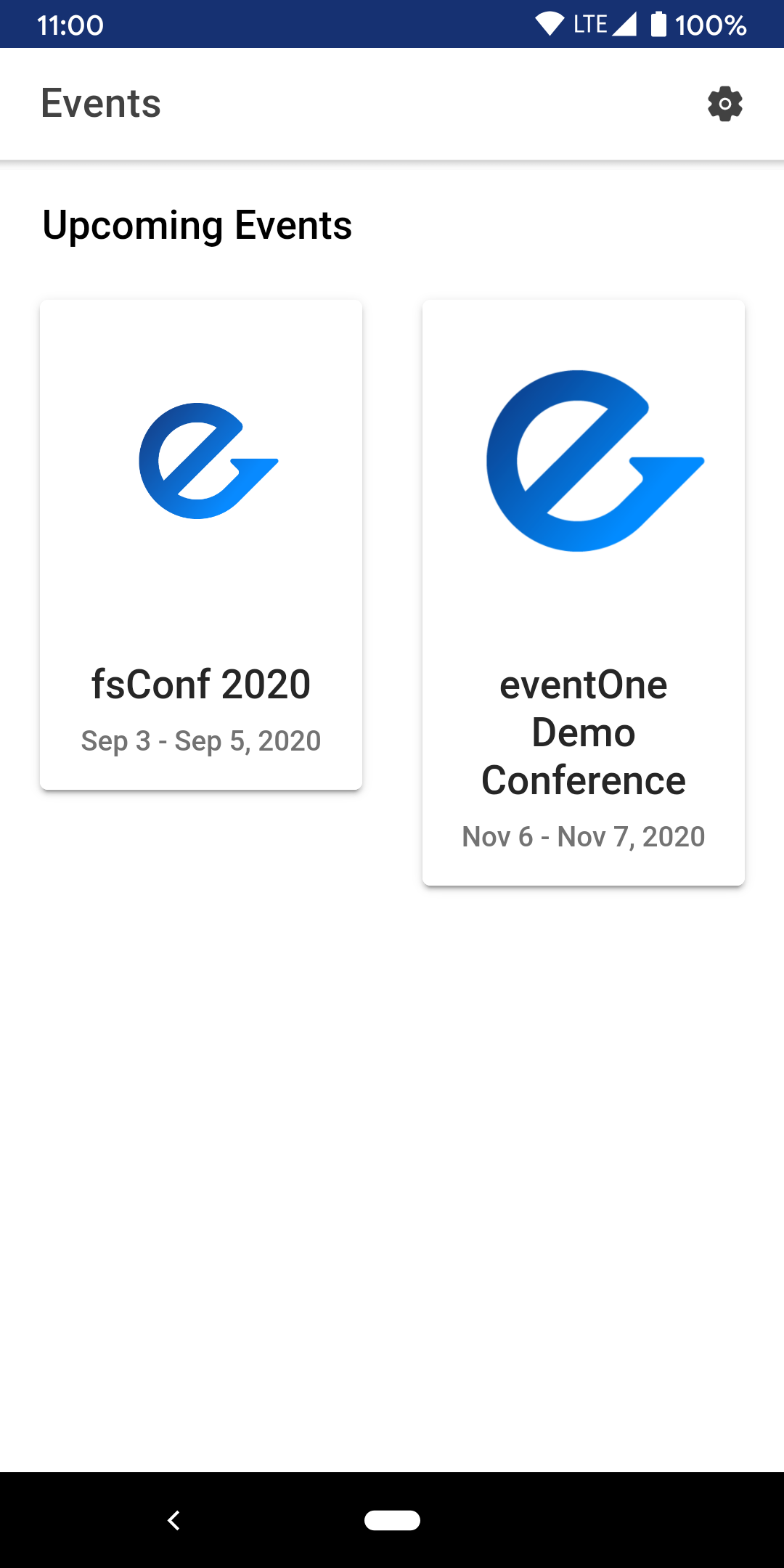
-
Go to the
Guest Listpage in the menu (unless you have changed it,Guest Listis the default page when you open an event)
-
Once you are on the
Guest List, you will see a list of all the attendees who have registered for your event. Attendees who have checked in already will have a green checkbox.


Check in via scanning a ticket
- Go to the
Guest Listand tap the QR code button in the bottom right corner -
A QR code scanner will open, which you can use to scan their ticket

-
When you scan the ticket, it will open the attendee's order details

- Tap on the Check-In button in the bottom right corner
-
The attendee is now checked in!


Check in via order number, name, or email address
- Go to the
Guest Listand search by either order number, email address, or name -
Once you find the order you are looking for, tap it

-
The attendee's order details will open
- Tap on the Check-In button in the bottom right corner
-
The attendee is now checked in!
